What's new

How to play on a GNU/Linux based system.

sabau100

Well-known member
Joined
Jul 13, 2011
Messages
333
Reaction score
9
Server
Aurora
Main Pilotname
. . . .
Rank
0
Clan
Mobius 118 - TXS
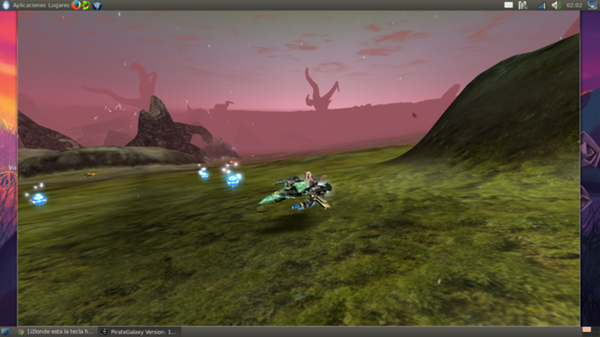
Good morning everyone, today we're gonna learn how to play Pirate Galaxy on Ubuntu OS, or on another GNU/Linux based systems.

Firts of all, the original post is here made by Zetazee.

____________________________________________________________________________


First of all, we're gonna need to install Wine 1.7 (It MUST be the 1.7 version)

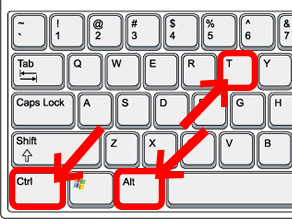
Step 1: Open a new terminal (CTR+ALT+T)


Step 2: insert the commands below.

  • sudo add-apt-repository ppa:ubuntu-wine/ppa

  • sudo apt-get update

  • sudo apt-get install wine1.7

Step 3: Download the game client.

Press HEREto download the game client.

After we download the game client, you must find where is the installer, after that insert the next command on a new terminal.

sudo nautilus /home/*/.wine/drive_c

Then you will see that a new folder opened, just copy the installer on that folder and select "OPEN WITH WINE".

Step 4: The installation and execution.

just press Next until the game launches.


And TADAAA your game is now running on Ubuntu.


If you have any questions please post them on the original post.
 

HGus

Well-known member
Joined
May 17, 2011
Messages
955
Reaction score
209
Server
Aeria
Main Pilotname
HGus
sabau100 said:
If you have any questions please post them on the original post.
Only if you can write Spanish. I guess that non-spanish speakers can talk here. We will be listening... :sneaky:
 

JediMester

New member
Joined
May 2, 2016
Messages
8
Reaction score
3
Server
Askone
Main Pilotname
JediMester
Rank
96
Clan
Monarch
Update:
Tested with Wine 8.0.2 on Linux Mint 21.2.
Downloaded with this Lutris script:
https://lutris.net/games/pirate-galaxy/
Obviously first you need to install Lutris. sudo apt install lutris on Linux Mint and pretty much on other Ubuntu based distributions as well.
The game runs nicely overall. There are small performance issues, but that's probably because of the low-end hardware I tested on + Wine. If you have an average PC with a video card, it should run well without any serious problems.

If you can't get into full screen (Alt+Enter), then right click the game in Lutris, go to Configure > Game options > Arguments.
The launch argument should look like this:
wine /home/<username>/Games/pirate-galaxy/Files/Launcher.exe
Edit it to:
wine explorer /desktop=<some_name>,1920x1080 /home/<username>/Games/pirate-galaxy/Files/Launcher.exe
If your screen resolution is smaller or higher than 1920x1080, then change it. The name after desktop could be anything.
Click "Save" and next time you launch the game it will open in a full screen Wine virtual desktop. If the game loaded in, you can press Alt+Enter to get the game itself into full screen.
 

HGus

Well-known member
Joined
May 17, 2011
Messages
955
Reaction score
209
Server
Aeria
Main Pilotname
HGus
For security, check the hashes of the exes before running it SHA3 512bits
810f0394292e90060859292f1a4b7c4cd7eb07d355dc7a0d9c3ca35631fa64fc0e61fe186b11c547f9db1b0ea2a347c77aff7f02dd72c33acfec654806334d37 *Launcher.exe
941774d438d36d23172b6d189f0a1d8c9aea18aca0baa6357c3f162732cb2853c2b3b020a82ad0c94709e63a78c3befffdfdce372b809d3a1f18e4327a3f52fd *Uninstall Pirate Galaxy.exe
 

iuli24

Member
Joined
Apr 13, 2021
Messages
44
Reaction score
42
Server
Askone
Main Pilotname
Za_Jul14n
Rank
99
Clan
Monarch
Since this forum thread is the first result that shows up when you search “pirate galaxy linux,” I figured it would be helpful to post an updated and easy-to-follow guide. The goal is to explain how to run the game on Linux in a way that’s reliable and performs well.

I’ll go through three modern methods that let you run the game on almost any fairly up-to-date Linux distribution. The examples focus mainly on NVIDIA graphics cards, since that’s what me and most players are likely using.

For testing, I used two popular distros myself (Linux Mint and CachyOS), and I also have confirmation from a friend that these steps work on Fedora. This should make the guide useful for a wide range of users.

_________________________________________________________________________________________

Prerequisites:
  1. Any common Linux distribution (Debian, Ubuntu, Fedora, Arch, etc.). The specific distro isn’t very important.
  2. A recent version of Wine, ideally something around Wine 10. Most distros already include an up-to-date version by default.
    Tip: You can check whether Wine is installed—and see which version you have—by running this command in your terminal:
    Code:
    wine --version
  3. Steam or Lutris. You can use either one—just pick whichever works best with the method you try.
  4. For NVIDIA users only:
    Make sure your GPU driver is fully up to date. Linux Mint and CachyOS usually handle this automatically. On Fedora and some other distros, you may need to install the NVIDIA driver manually. If that applies to you, look up a current guide online.
    Tip: Don’t use the open-source “nouveau” driver for this game.
  5. For AMD Radeon / Intel users only:
    • AMD drivers are usually included in the Linux kernel, so most of the time you don’t need to do anything. If you want, you can also manually update or install the latest Mesa driver.
    • For Intel GPUs, simply make sure you have the latest Mesa driver installed.
    • I won’t go into detailed installation steps here, but if you need guidance, search online for an up-to-date tutorial for your specific distro.
  6. A Proton/Wine version manager like ProtonUp-Qt, which makes it easy to install different Proton versions as needed.
    Tip: You can install ProtonUp-Qt either through your distro’s software store (often listed simply as “ProtonUp-Qt”) or by installing it from the terminal. Use the correct command for your distribution. For example, on many Debian/Ubuntu-based systems you can use:
    Code:
    sudo apt install protonup-qt
  7. The game can be installed either inside a Wine prefix (which is usually straightforward) or by transferring the game files from a Windows drive to your Linux system. Both methods work equally well.
_________________________________________________________________________________________

1. Best Performance Method, High Effort

Difficulty: Medium - Hard depending on if you already are on a distro for this method or not

What you need:
  • A modern Linux distro with good Wayland support (like CachyOS or Fedora)
  • Wine 10.X
  • Steam
  • ProtonUp-Qt to install a custom Proton version
Steps:
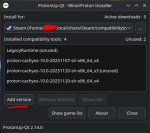
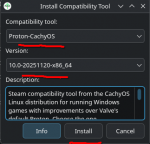
  1. Open ProtonUp-Qt and install the latest proton-cachyos-10.0-X version for your CPU architecture. If unsure install the generic version like in the example screenshots:
    Tip:
    • Versions labeled v4 (x86_64-v4) are for newer CPUs.
    • Versions labeled v3 (x86_64-v3) require CPUs that support AVX instructions.
    • The base generic version works on all CPUs, regardless of these features.1763899772892.png1763899839344.png
  2. After the installation is complete, open Steam.
    • If Steam was already running during the Proton installation, restart it, because it won’t detect new Proton versions otherwise.
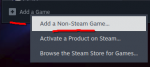
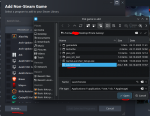
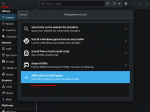
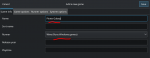
    • First, make sure the game is installed and that you know the location of its folder and executable. Then, add launcher.exe to your Steam library by following these steps:
      1763900347209.png1763900473562.png
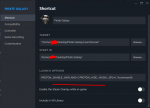
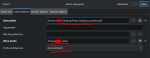
    • The game should appear in your steam library. Go to its properties and add the following launch options in the correct field like this:
      NVIDIA ONLY: PROTON_ENABLE_WAYLAND=1 PROTON_HIDE_NVIDIA_GPU=1 %command%
      AMD Radeon / Intel: PROTON_ENABLE_WAYLAND=1 %command%

      DISCLAIMER: If the game runs bad with this method in the case of AMD / Intel you have to understand that I could only test on NVIDIA since that is the only GPU that I currently own. If it runs good for you / you have something to add here feel free to reply.1763907599650.png
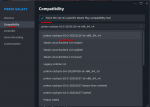
    • Then go into the Compatibility tab and enable the newly added proton version for this game like this:1763901247020.png
    • Now, launch the game through Steam.
      • On the first run, you might notice that text appears as squares on the loading screen.
      • Close the game, and Wine will likely prompt you to install some missing dependencies.
      • Click Install, then start the game again. The text should now display correctly.
Terminology:
  • PROTON_ENABLE_WAYLAND=1 – Instructs Proton/Steam to run the game using the Wayland display server instead of X11. This is why a Linux distro with proper Wayland support is needed.
  • PROTON_HIDE_NVIDIA_GPU=1 – Makes the NVIDIA GPU appear as a generic AMD Radeon GPU. This disables NVIDIA-specific features like RTX, which can sometimes improve performance. That’s why this option is only for NVIDIA users.
Known Limitations / Issues:
  • Early-game stuttering: The game may stutter for the first 10–60 seconds, but it smooths out on its own. This is only a minor inconvenience.
  • Black screen from repeated fullscreen toggle: Pressing Alt + Enter repeatedly can cause a black screen. The only fix is to restart the game. To avoid this, use Alt + Tab to switch windows instead of toggling fullscreen repeatedly.
Expected Performance:
  • FPS should be virtually the same as on Windows—around 62.5 FPS on high-refresh-rate displays.
  • Stuttering or micro stuttering is minimal to nonexistent, making gameplay feel nearly identical to Windows.

_________________________________________________________________________________________

2. Decent / Good Performance Method, Low Effort

Difficulty:
Easy

What you need:
  • Any modernish Linux distro that supports either X11 or Wayland
  • Wine 10.X
  • Steam
  • ProtonUp-Qt to install a custom Proton version
Steps:
  1. Open ProtonUp-Qt and install either latest proton-cachyos-10.0-X version for your CPU architecture. Or the latest Proton-GE version available. I recommend proton-cachyos for best results
  2. Similar to Method 1, Add the game on Steam then select the version of proton you want to use
  3. Add these proton arguments:
    NVIDIA ONLY: PROTON_USE_WINED3D=1 PROTON_HIDE_NVIDIA_GPU=1 %command%
    AMD Radeon / Intel: either: PROTON_USE_WINED3D=1 %command% or leave it empty. The reason being that AMD has much better driver support under linux than NVIDIA. I recommend you try both and see how the game runs after a period of at least 5 minutes.
Terminology:
  • PROTON_USE_WINED3D=1 – Tells Proton/Steam to run the game using WineD3D, which translates Direct3D (Windows graphics API) calls into OpenGL or Vulkan on Linux. This can improve compatibility for games that struggle with the default Proton D3D-to-Vulkan translation, especially on NVIDIA GPUs, which are known to sometimes have high overhead with DirectX-to-Vulkan conversion. In this game's case it massively improves performance, results validated on Cachy OS, Linux Mint and Fedora.
  • PROTON_HIDE_NVIDIA_GPU=1 – Already explained in Method 1
Known Limitations / Issues:
  • Early-game stuttering: The game may stutter for the first 10 seconds up to 2 minutes, but it tends to smooth out on its own. This is only a slightly bigger inconvenience but still not huge.
  • Keyboard that can stop working if you alt tab out of the game: This is very annoying as you can expect but can be fixed in 2 ways. Depending on your Window Manager (especially KDE Plasma) you can force the game window to be borderless windowed even though the fullscreen toggle is disabled in game. This effectively fixes the keyboard "dying" for the game. (ALT + F3 opens up the menu to do this for KDE)
Expected Performance:
  • FPS will be lower than windows—around 58.5 FPS regardless of your display type
  • Stuttering or micro stuttering is medium to minimal, making game play feel nearly but not quite identical to Windows. Keen eyes will instantly notice that something is not quite right. But considering this is the easiest way to run the game in linux.. it might be one of the better options to use.
_________________________________________________________________________________________

2. Good Performance Method, Medium Effort

Difficulty:
Medium

What you need:
  • Any modernish Linux distro that supports either X11 or Wayland
  • Wine 10.X
  • Lutris
  • ProtonUp-Qt to install a custom Wine version
Steps:
  1. Open ProtonUp-Qt and install a custom Wine version called Wine-GE. If your Linux distribution doesn’t include this version, you may need to download it manually from the official GitHub page. The recommended version is 8.26. The location of default lutris runners is: /home/$USER/.local/share/lutris/runners/wine/
    All you have to do is unarchive the downloaded wine-ge version to that directory and lutris will pick it up.
  2. Open lutris and add the game to it like this:
    1763905115844.png

    Select Wine as the runner
    1763905290711.png

    Point lutris to the correct wine prefix you have installed. Usually lives in /home/YOUR_USER/.wine
    1763905332593.png

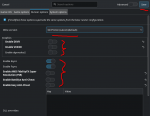
    Then select the Wine-GE version you have installed (it will show as GE-Proton) and then toggle the graphics settings as described below and then click Save:
    1763905683647.png
  3. OPTIONAL:
    Add wine DLL overrides to improve the game performance slightly. Go to this directory where lutris stores config files ~/.local/share/lutris/games and inside you will find a config file for the game. Open it and inside the overrides section paste this:
    Code:
    overrides:
        caelum: native
        caelum4j: native
        cg: native
        cpp2j-base: native
        driv_xal: native
        forests: native
        msvcp140: native
        msvcp71: native
        msvcr71: native
        mygui: native
        mygui4j: native
        ogre4j: native
        ogreal32: native
        ogremain: native
        ogreoggsound: native
        ogreoggsound4j: native
        plugin_cgprogrammanager: native
        plugin_octreescenemanager: native
        plugin_paginglandscapescenemanager2: native
        plugin_particlefx: native
        plugin_securearchive: native
        rendersystem_direct3d9: native
        scenemax: native
        swt-awt-win32: native
        toolkit: native
        toolkit4j: native
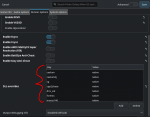
    Save the file and then you should see all the overrides inserted at once like this:
    1763905873140.png
    Then save and click play.
Terminology:
  • Wine-GE – A custom, community-built version of Wine (by GloriousEggroll) that includes additional patches and fixes for better compatibility and performance with certain games on Linux. It often handles DirectX and Vulkan translation more reliably than standard Wine.
  • Wine DLL Overrides – This allows you to replace Wine’s built-in Windows DLLs with either native Windows DLLs or alternative implementations. It’s useful when a game behaves better with a specific DLL version or when Wine’s default handling causes crashes or graphical issues.
  • Disabling DXVK / VKD3D under Lutris – DXVK (DirectX-to-Vulkan) and VKD3D (Direct3D 12-to-Vulkan) are translation layers for running Windows games on Linux. On NVIDIA GPUs, enabling these can and will cause performance drops or stuttering. Disabling them in Lutris forces Wine-GE to handle DirectX calls differently, resulting in better FPS.
Known Limitations / Issues:
  • Early-game stuttering: The game may stutter for the first 10 seconds up to 1 minutes, but it tends to smooth out on its own. This is only a slight inconvenience but still not huge.
  • Keyboard that can stop working if you alt tab out of the game: Same issue same fix as in Method 2
Expected Performance:
  • FPS will be lower than windows—around 58.5 FPS regardless of your display type
  • Stuttering or micro stuttering is ~minimal, making game play feel close to Windows. Otherwise similar to method 2 but very slightly better
TL;DR

This guide is meant to serve as a reference. Feel free to experiment—try different Proton versions, tweak launch arguments, or swap variables as needed. And if you discover a setup that works well and might help others, consider sharing it in a reply.

The performance notes and issues I listed are based on my own hardware, software, and OS setup, so your results may vary.

Personally, Method 1 and Method 3 are my top choices. The Wayland-based method gives the best performance overall, while the Lutris method offers strong results with less effort for those who prefer a simpler setup.

I wish a guide like this had existed when I first tried running PG on Linux—it took me weeks of searching, testing, and digging through forums to understand how and why these methods work. Hopefully this gives you a solid starting point. And if not, at least it should help point you in the right direction.

Enjoy the game—and welcome to the Penguin!
 
Last edited:

iuli24

Member
Joined
Apr 13, 2021
Messages
44
Reaction score
42
Server
Askone
Main Pilotname
Za_Jul14n
Rank
99
Clan
Monarch
Since I can't edit the main post anymore I will type here some corrections for some typos / missing info:

-This is actually the 3rd method not 2nd v2. I made a typo when I copy pasted the title from method 2. That is if you were wondering why method 2 may have existed twice. It doesn't. It is different than the real method 2.
2. Good Performance Method, Medium Effort

-Here the 2nd method to fix the dying keyboard is to simply play the game windowed / not alt tab out of it in the first place. I forgot to write it xd.
Keyboard that can stop working if you alt tab out of the game: This is very annoying as you can expect but can be fixed in 2 ways. Depending on your Window Manager (especially KDE Plasma) you can force the game window to be borderless windowed even though the fullscreen toggle is disabled in game. This effectively fixes the keyboard "dying" for the game. (ALT + F3 opens up the menu to do this for KDE)

-This part from method 1 (best performing one) is kinda true kinda not true all the way. I will elaborate more in the story time section of this reply below.
Expected Performance:
  • FPS should be virtually the same as on Windows—around 62.5 FPS on high-refresh-rate displays.
  • Stuttering or micro stuttering is minimal to nonexistent, making gameplay feel nearly identical to Windows.


Story time:


After I posted my first reply here I started playing more on linux with the method 1 mentioned there. It was performing well as described. Then one day I randomly thought about "benchmarking" its performance with laggy planets / missions. What better planet to choose than Earth in Unrest and one well known mission named battle for lag.. cough cough I mean battle for earth. :LOL:

Everyone knows this mission for being one of the worst for FPS and for game stability (usually people crash at random in it). Then I took a clannie to do the mission with and started testing.

For reference under windows on my PC the game struggles to hold 60 fps during the entire length of the mission. especially while fighting the giza or the main mission tower. FPS would drop to ~45 and would stay around 50 even after completing the mission (likely caused by the fact that the game takes a while to fully unload mission assets or never does so properly, relanding fixes this and getting the frames back to 60).

Well.. the reason why me saying this: "Stuttering or micro stuttering is minimal to nonexistent, making gameplay feel nearly identical to Windows" in method 1 is not entirely true.. is because not only does the game run identical in terms of MAX FPS as it does under windows.. it actually runs faster... than windows...

I tested this twice without restarting the game. I did battle for earth twice and both times the fps stayed pretty much exactly at 60 fps. Actually sorry I sort of lied. I saw the fps drop once to 59 :ROFLMAO:.

Here is proof of this performance result from the 2nd run of battle for earth:
(Also GalaxyHellx now u are permanently stuck in this forum. Sorry not sorry :ROFLMAO:)
Screenshot_20251128_142055.jpg
Yes this is running on quite strong hardware, a 7800X3D from AMD and an RTX 3090 (the GPU really does not matter for pg fps, the CPU does) using ultra as the graphics setting but considering the performance with this high end hardware was still better under linux than under windows.. is just incredible.

Then I was like.. is this a fluke? Is this behavior reproducible on other computers or is this only a case for my very specific hardware combination? I took my laptop (5600H + RTX 3050) and installed the same linux distribution.. same proton version.. and same exact steps as method 1. Under windows on ultra I would drop fps to as low as 15 with an average of 20.

I will just let the results speak for themselves:laptop.jpg
Yes I know its 32 FPS and its not great but I was playing on ultra here too in order to not skew performance results from this test. Buut.. if you paid attention.. wait a second.. its 32 fps and NOT 20 :D. In other words the results are reproducible on different hardware. Here the lows were around 30 FPS and the average was around 35-38 FPS. Absolutely incredible.

I kept hearing rumors from some random people saying that this game runs better under linux.. blah blah blah. But seeing is believing. I never would've expected to match performance with windows under linux in such an old game.. let alone surpass it by this huge amount. Now I can say for certain that it is real and it is definitely not a rumor anymore.

I also had my Fedora bud confirm these results. They are reproducible on his computer as well.


Now that the story time is over, I will go over a few neat things that I noticed while playing PG under method 1 under linux:

-performance is much better than windows
-drone switching is significantly faster. the game only hangs on average for < 0.2s (this might be huge for OTB / CQ people)
-the game runs better the longer you play which is reverse of what windows does (usually peak performance in linux is reached after ~5 mins of playtime but even in those 5 mins the performance is really good)
-absolutely no crashes to speak of even while doing battle for earth twice in a row and even when doing it a 3rd time on my laptop (this is not a guarantee for no crashes whatsoever. the game is buggy and unstable and it may still crash eventually. i wanted to point out that there are no linux related crashes on top of the ones caused by the game itself)

BONUS FOR METHOD 1:


Getting frame generation to work on linux to gain extra motion smoothness for the game:

Prerequisites:
  1. Steam
  2. Lossless Scaling purchased from Steam or obtained from other "legit" sources that I am not responsible of
  3. Method 1
  4. lsfg-vk obtained from your distro's store
  5. An extra proton argument added next to the others in method 1 (PROTON_USE_WOW64=1). To make it easy just copy paste the full line from here: PROTON_ENABLE_WAYLAND=1 PROTON_HIDE_NVIDIA_GPU=1 PROTON_USE_WOW64=1 %command%
Select the beta version of the app to be linux-testing:

1764621168484.png

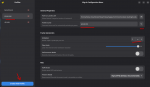
Launch the game and then launch lsfg-vk (both have to be running) and then create a new profile and add the game process to it like here:
1764621545330.png

For screens between 120 - 165Hz I recommend setting the multiplier to 2.
For screens >=180Hz I recommend setting the multiplier to 3.

This effectively either doubles or triples your FPS. The reason why you should not set a multiplier that would result in a framerate above your screen's refreshrate is because it will not framegen above it! DO NOT set it like this or you will artificially cap your real game FPS below 60 which will make the game feel more sluggish than usual.
Examples that should remove any confusion:
  • 60 X 3 = 180 FPS alongside an 180Hz or above screen is perfect.
  • 60 X 3 = 180 FPS alongside an 165Hz or below screen is bad. The actual result is: 55 X 3 = 165 FPS.
  • 60 X 3 = 180 FPS alongside an 120Hz is bad. The actual result is: 40 X 3 = 120 FPS.
  • 60 X 2 = 120 FPS alongside an 120Hz screen is perfect.
You also should restart the game for the frame gen to start working. I also recommend you enable steam's ingame overlay for FPS. It should show you the new frame rate and the game will definitely feel a lot smoother than it actually is.

You do not need to keep lsfg-vk open every time you start PG. It's a set it and forget it thing. Once it starts working it will always work regardless if you restart your computer or restart the game without opening lsfg-vk. In this aspect the experience is better than it is with the windows version where you have to keep the app open.

What this tool actually does so there isn't any confusion:

  • This system relies on a locally run AI model to generate entirely new frames between the ones your game already produces. By inserting these interpolated frames, it can effectively double or even triple the visible frame rate.
  • It’s important to note that the game itself continues to run at its original FPS. The interpolation happens after the frames leave the game engine, so it doesn’t interfere with physics, animation timing, or any of the internal logic that depends on real engine frames.
  • The resulting motion won’t be perfectly identical to a native high-FPS output, but it comes surprisingly close. Because the AI has to predict what should exist between real frames, you may occasionally spot minor visual glitches or artifacts—these are normal and come from the model not always being able to infer every detail with perfect accuracy.
I can't exactly picture the motion of this frame gen scenario but as I like to say seeing is believing. Give it a try if you want, don't give it if you don't and enjoy a PG experience like no other.

 
Top